Playing on Ordiria
How to start a campaign, bring your group in and take your turns, live or by post. Buttons and menus are named in bold, as the app shows them.
Start here
What Ordiria is
Ordiria keeps a tabletop roleplaying campaign going when your group can't meet. It holds the characters, the turn order, the rolls and the story in one place, so whoever comes back, after an hour or after a month, sees where things stand and whose move it is.
You can play live, at a table or on a call, or by post, one turn at a time from your phone. Both are the same campaign.
Ordiria is not a virtual tabletop: there are no maps, tokens or grids. Many groups keep it open next to a call or a map tool.
This is an alpha. Some things will break, and what you tell us decides what we fix first.
Games you can play now
Every campaign uses one game, chosen when the GM creates it, and it can't be changed later. A character joins only a campaign of its own game. Ordiria keeps the numbers and the bookkeeping; the rules are still the game's.
5e (2024) takes characters from level 1 to 5. Each game's licence notice is in the credits below.
Available now:
- Cairn 1e
- Cairn - First Edition, a classless survival RPG.
- Cairn 2e
- Cairn Second Edition, with Bonds and Omens.
- 5e (2024)
- 5E compatible, limited to the SRD 5.2.1. License
Getting in
If you received an alpha invitation by email, open its link and create your account, or sign in if you already have one. The link works once.
If your GM invited you, open the link they sent you. Create your account, or sign in; you land on My Campaigns, ready to join.
On a phone, My Characters and My Campaigns are in the menu under your initials, top right.
Playing live or by post
Every campaign has two views. Live is for playing together, at a table or on a call. By post is for playing by post, and for the time between sessions. Switch at the top of the campaign. Each person picks their own view; nothing changes for the others.
A roll's result applies as soon as it is made, in both views, and the GM can undo it. A GM who prefers to check results first turns on GM confirms results in Manage, separately for Live and By post. Results then wait in the Log until the GM presses Apply or Discard.
For GMs
Create a campaign
- Open My Campaigns.
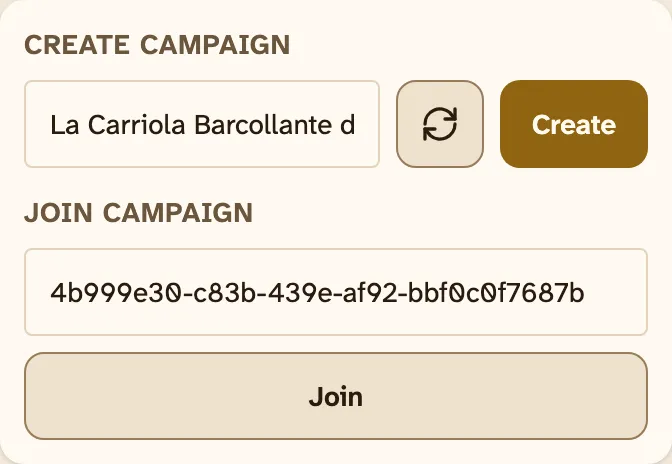
- Under Create campaign, keep the suggested name or type your own.
- Press Create, then pick the game in Choose a game.
During the alpha, only accounts with an alpha invitation can create campaigns; without one, My Campaigns says so in place of the form. Anyone can join a campaign.
Invite your players
- In My Campaigns, open the ⋯ menu on the campaign's row and press Copy invite link. Inside the campaign, the same button is Invite players… in Manage (By post view).
- Send the link to your players however your group talks: a chat, an email.
Each player needs their own account and joins with a character of the campaign's game.
Your players don't need an alpha invitation of their own: the invite link is enough.
Run the turn order
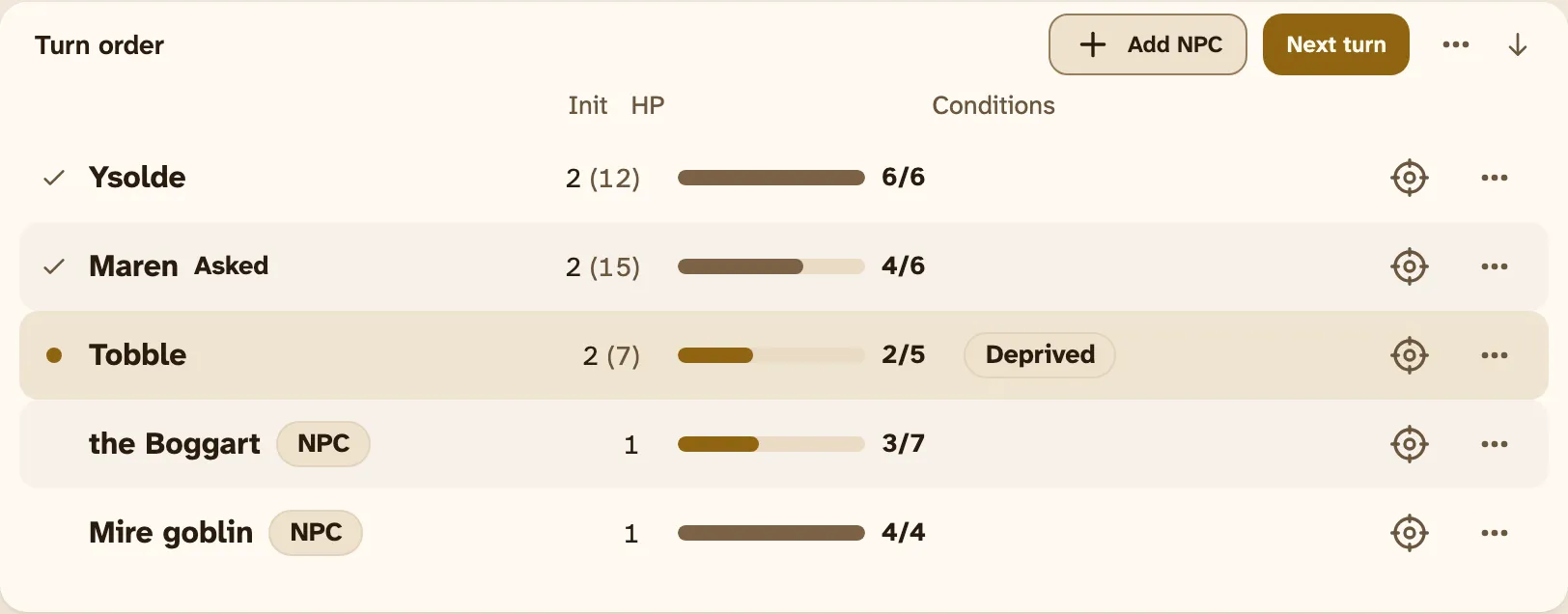
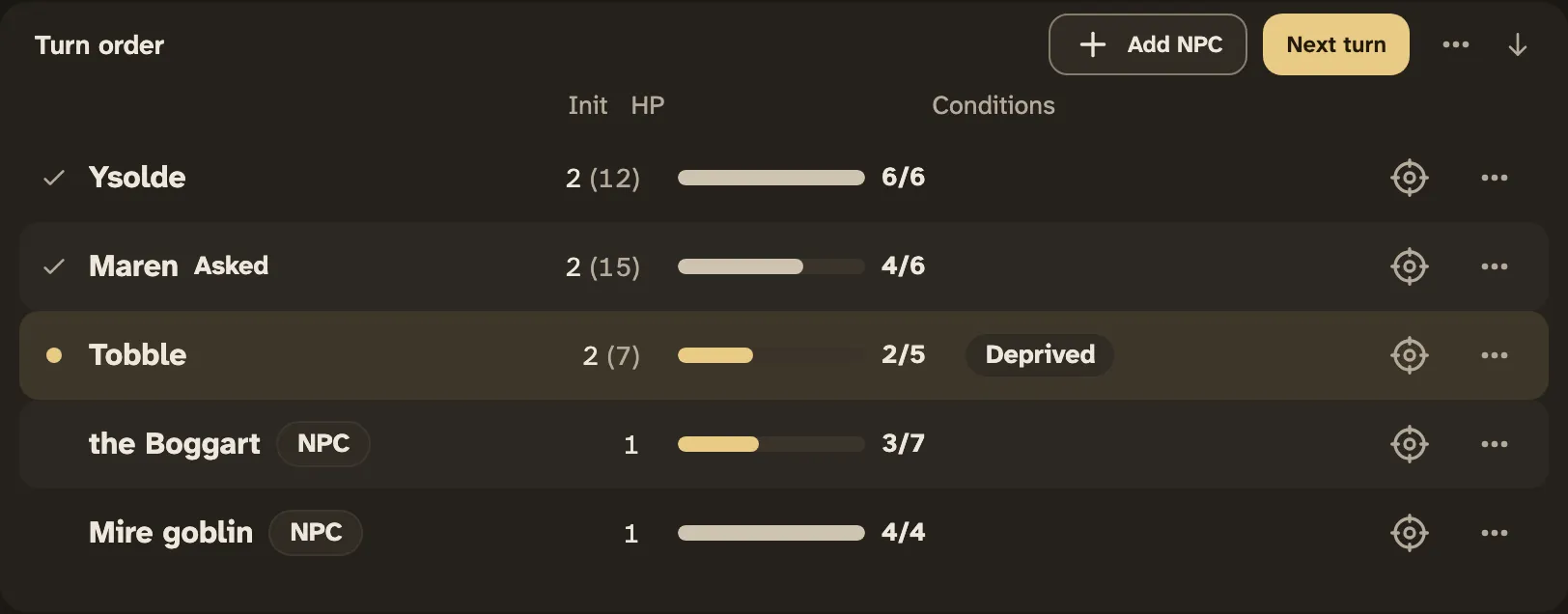
- Open Order on a phone, or the Turn order panel on a larger screen.
- Press Roll initiative on each row, or drag the rows into the order you want.
- Press Start round 1. Now shows whose turn it is.
- Press Next turn when a turn ends. After the last turn of the round, it starts the next round.
Tap a character's name to open its sheet. Tap the HP value to set it: type a number to set it, or −7 / +3 to change it. The ⋯ on a row holds Apply condition and Ask for a roll. The ⋯ in the header holds the game's rests.
In Cairn, an NPC's sheet has its own saves; morale is a WIL save. Dice in the Log opens the game's own rolls under Game rolls (in Cairn, Reaction and the Die of Fate), and the Log names the result.
Every Cairn sheet has Adjust, for maximums, ability damage and gold, and you can open it on any character. A Panicked character's sheet has a WIL save to recover; a pass ends the Panic.
Add NPC in the turn order adds an NPC. In Cairn it takes the stat block: HP, Armor, STR, DEX, WIL, the attack and notes, and Add to roster in the Bestiary fills it from the book. The NPC's sheet has a button for each attack its stat block names, and a selector for an impaired (d4) or enhanced (d12) attack.
Ask a player for a roll
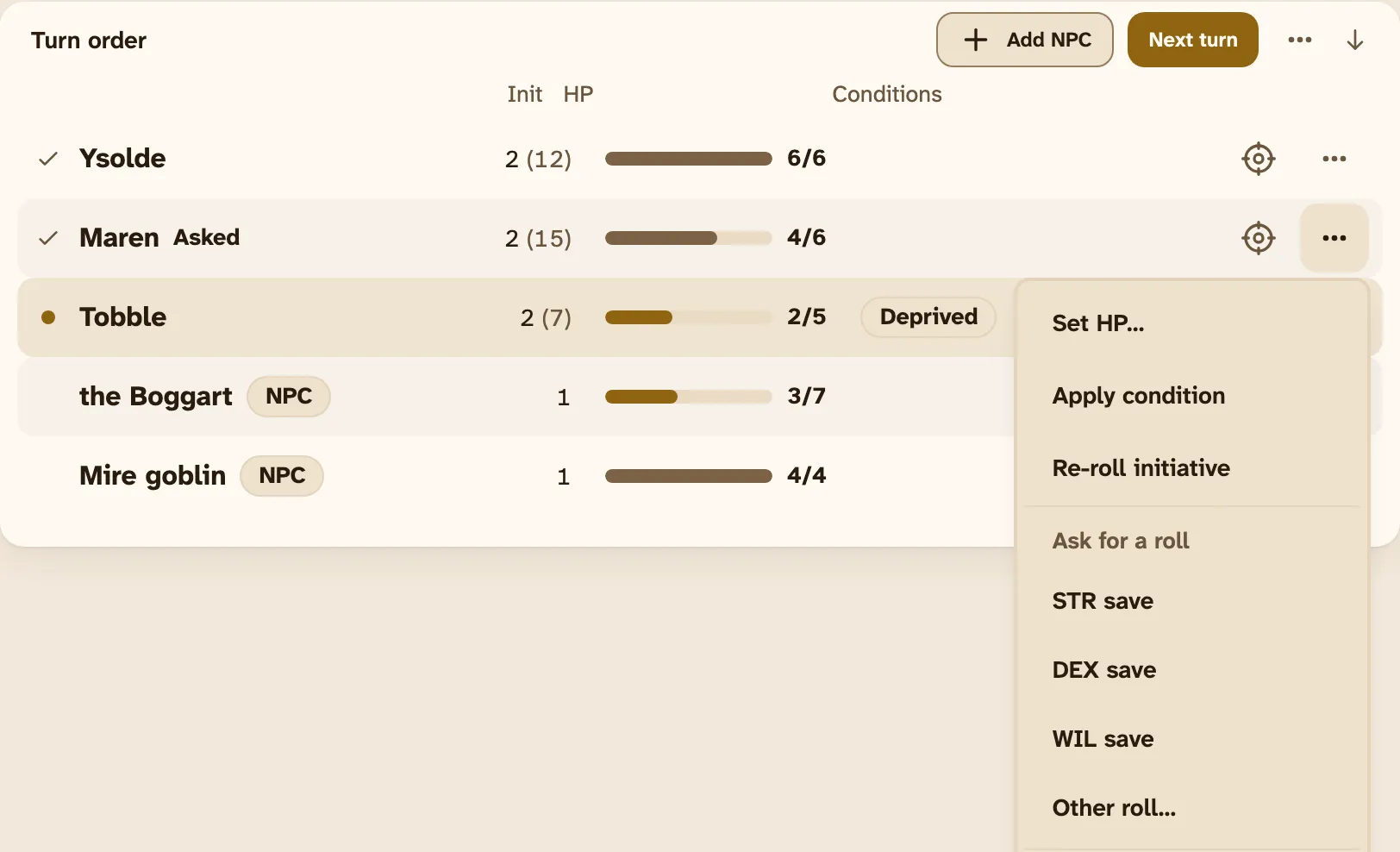
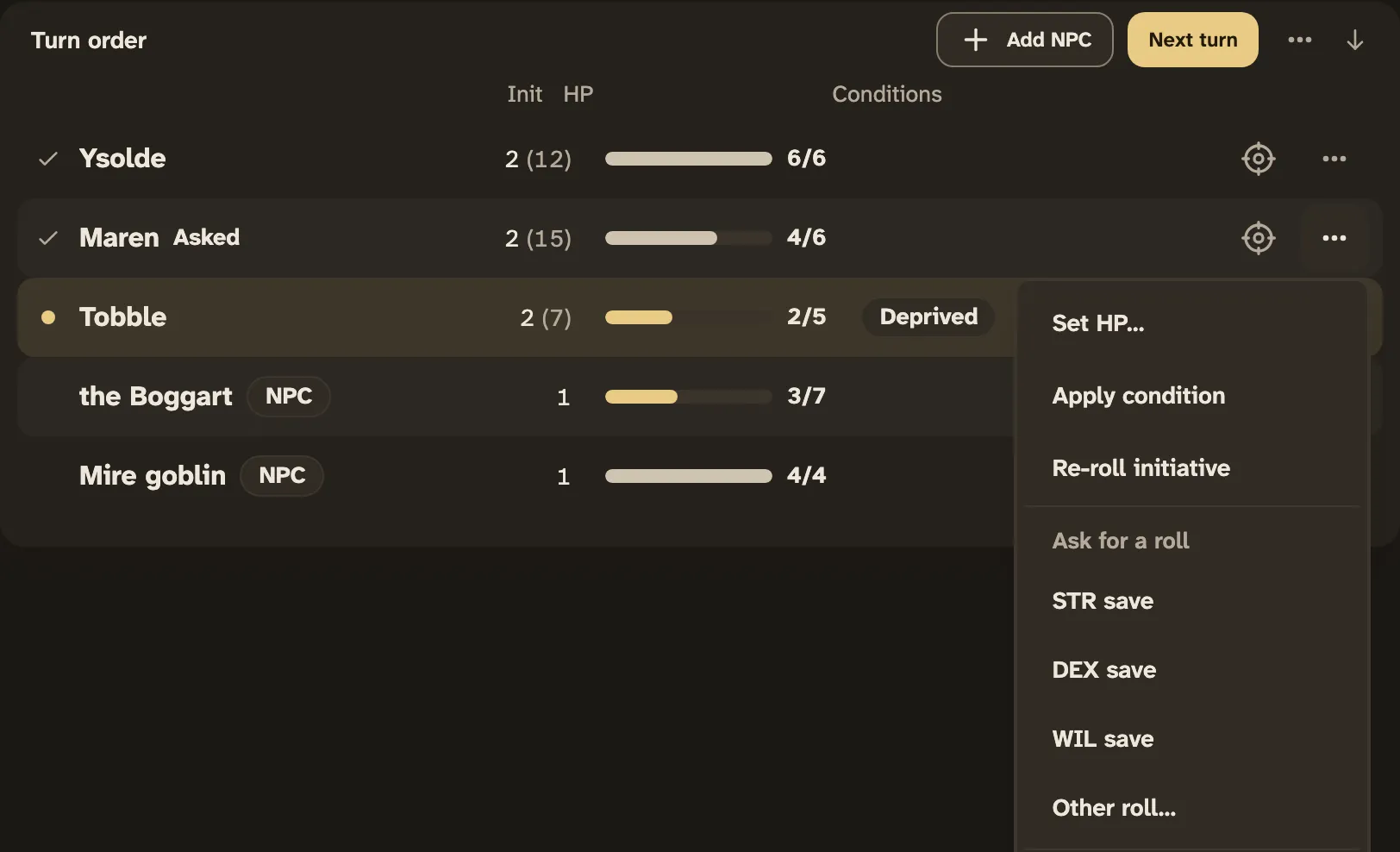
- On the player's row, open ⋯. Under Ask for a roll, pick a save, or Other roll… for any dice.
- To ask every player at once, use Ask every PC in the ⋯ menu of the turn order's header.
The player sees your request where their turn would be, and the turn order marks them Asked. Your list of asked rolls in Now lets you Answer for a player (for example someone with a paper sheet at your table) or Withdraw a request.
Cairn also asks for a save by itself. When a blow takes a character below 0 HP, the rules owe a STR save, and a failure means Critical Damage. A foe's save is rolled at once. A player's save waits for them like your requests: the turn order and your list mark it Owed, and you can Answer it for them.
Run a campaign by post
In By post, the Log is the story. Write what happens and press Send; press Next turn to pass the turn. When you come back, a divider in the Log shows how many entries are new since your last visit.
To write to one player only, pick them in To before sending. Only the two of you see it.
Now says who the table is waiting on, and since when: in a fight, the player whose turn it is; otherwise, each player who hasn't posted since your last message to everyone or to them. When every player has posted, it says the table is waiting on the GM.
Players have 48 hours to post. After that, Now marks them overdue, and the turn order marks the player whose turn it is Overdue. Tap an overdue name to write to that player. To change the hours, or to turn the deadline off for a table that plays only live, use Posting deadline in Manage. In My Campaigns, each campaign shows how many of its players are overdue.
Running 5e (2024)
Add to roster adds the creature with its stat block: AC, HP, saves, skills, defenses and attacks. Its sheet shows the traits and the action texts, and has a button for each save, skill, attack and damage.
Roll on one of several identical creatures rolls one initiative for all of them. A combatant you mark Surprised with Apply condition rolls its initiative with Disadvantage. After the roll, the ⋯ of a character with the Alert feat lists Swap initiative with.
Grant level on a character's sheet gives the player their next level.
For players
Join a campaign
- Open the invite link your GM sent you, and sign in or create your account.
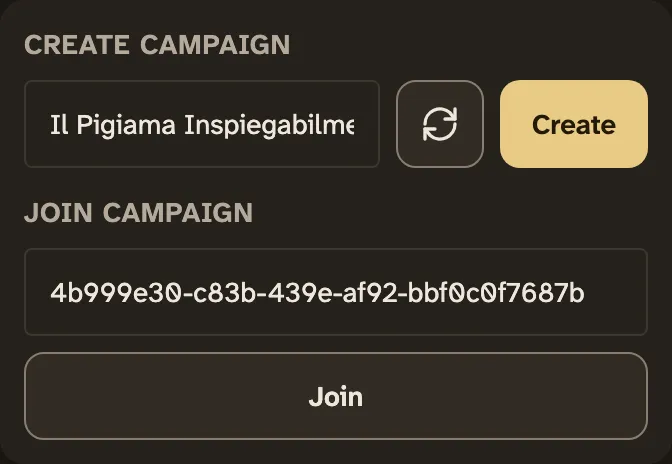
- On My Campaigns, the campaign is already filled in under Join campaign. Press Join.
Got an invite code instead of a link? Paste it in the same field.
Had to confirm your email first? Sign in, then open the invite link again.
If joining fails, the message says why. A link that no longer works was reset by the GM: ask them to send it again.
Create your character
- Open My Characters and pick the campaign's game.
- Follow the steps. At the end, press Save to cloud. This moves the character to your account; the copy on this device is removed. In 5e (2024), Roll 1d12 beside Languages rolls one on the table.
- In My Campaigns, tick the character under My characters, press Assign and pick the campaign.
Take your turn
Now says Your turn when it's yours, and You're next just before.
Live: roll from your sheet (Sheet on a phone). Everyone sees the result in the Log.
To aim a roll at a foe, press Change at the top of your sheet and tap the foe. It stays your target for your next rolls, until you change it or the foe goes down.
In Cairn, a save is one tap on STR, DEX or WIL on your sheet. The Log says whether it passed.
By post:
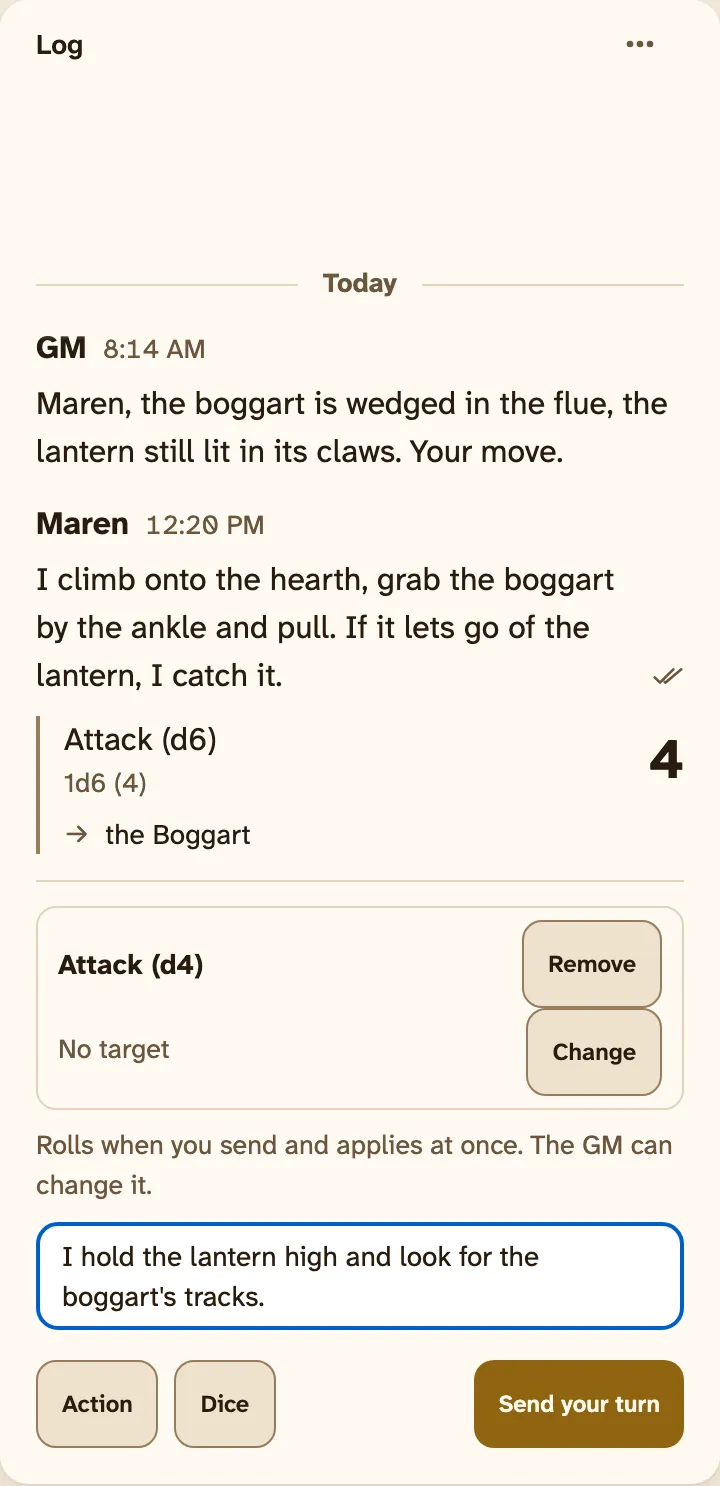
- Open Log and write what your character does.
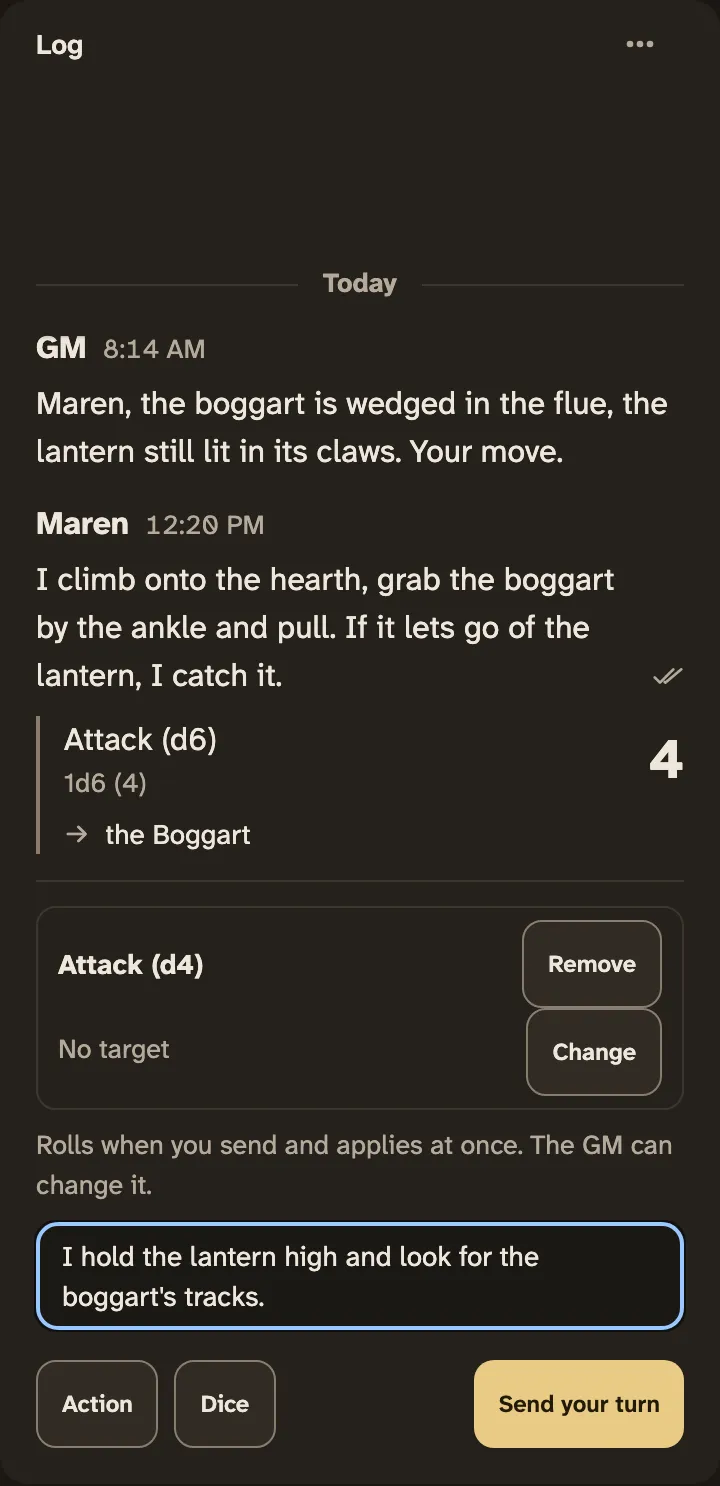
- To add a roll, press Action and tap the roll on your sheet. Pick a target if it needs one.
- Press Send your turn. Your text and your rolls arrive as one entry; the dice are rolled when you send.
If you leave halfway, your draft waits on this device.
In By post, Now says when the table is waiting on you, and when your post is due.
Your sheet in play
Your Cairn sheet keeps what changes in play. Fatigue sits in your inventory with − and +, one slot each. Adjust holds your maximums, ability damage and gold, for a Scar's new score or a monster's blow. When the inventory is full, the sheet says so and your max HP is 0.
Magic sits in your Cairn inventory too. A Spellbook shows its spell: Cast adds a Fatigue, and WIL save rolls the save the GM may ask for when you cast in danger. A Scroll's Read uses it up, with no Fatigue. A relic shows what it does, its charges and how it recharges; any item with uses or charges counts down with − and +.
Your 5e (2024) sheet
The bar at the top of your sheet sets your next d20 roll: Normal, Advantage or Disadvantage. It goes back to Normal after the roll. Your conditions already count, and when you attack, so do your target's.
Cast spends a spell slot of the level you pick, or Free when a feature gives you the spell. A healing spell's Cast also rolls its healing onto the teammates you target, and False Life's gives you Temporary Hit Points. When new Temporary Hit Points meet the ones you have, the larger pool stays and Keep swaps in the other.
After a hit, a Rogue's Uncanny Dodge under the HP line halves it. A weapon you have mastered plays its mastery: roll its damage after a hit for Topple, Sap, Slow or Vex, and after a miss for Graze.
Spell slots, Hit Point Dice, Heroic Inspiration and Exhaustion are under Resources. At 0 HP your death saving throws come first on the sheet.
After a rest, Rest changes at the top of your sheet offers what the rules let you change, such as prepared spells or Weapon Mastery; Done closes it. When the GM grants a level, Level up on your sheet opens the builder at the new level: take the Hit Points, make the new picks, and change the one pick each that the rules allow.
A Druid's Wild Shape, at the top of the sheet, lists your known forms. Pick one to take its shape: it spends a use and gives you Temporary Hit Points, and your sheet shows the form's numbers until Leave form, a rest or 0 HP.
Tap a section's heading, such as Skills or Spellcasting, to fold it. This device remembers which ones you folded.
When the GM asks for a roll
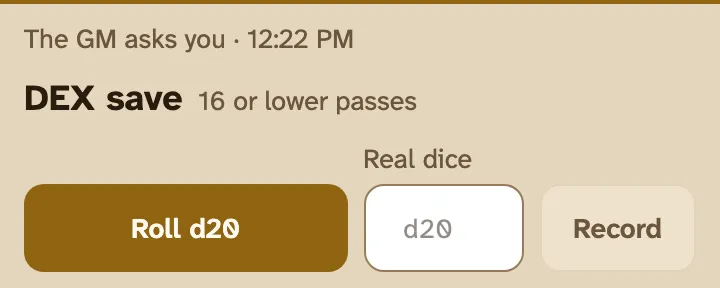
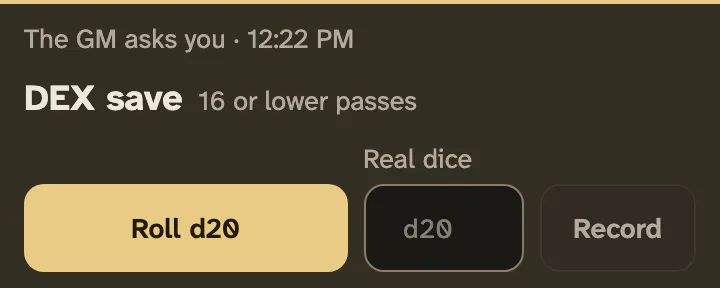
A card shows who asks, for what, and the rule in one line. On a phone it takes the place of your turn bar. Press its roll button to roll in the app, or type what your real die shows under Real dice, then press Record. A roll of several dice has Enter dice… instead.
When a blow takes your character below 0 HP, the rules owe a STR save. The same card asks for it, and the turn order marks your character Owed. If the save fails, your character takes Critical Damage.
For everyone
Rolling real dice
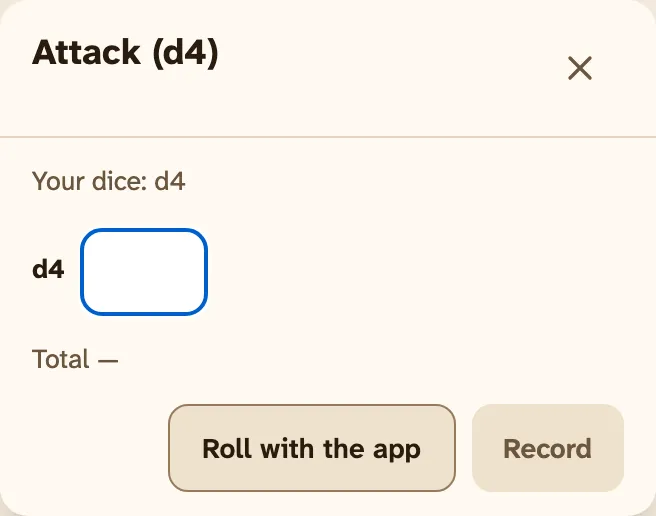
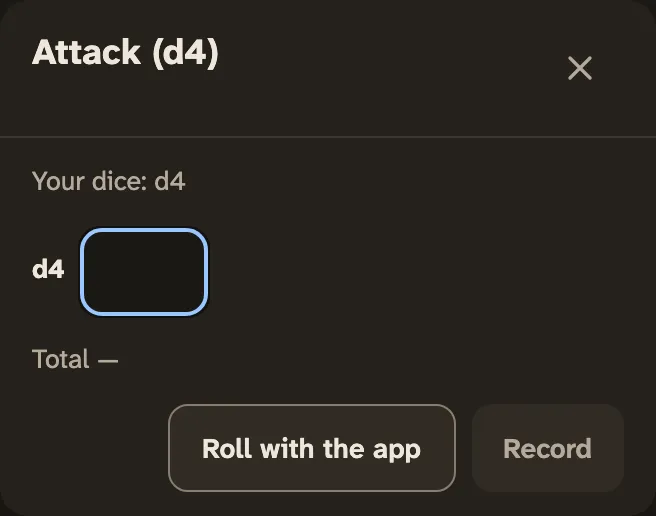
Real dice are welcome. On a character's sheet, set Dice to Real dice: its roll buttons then ask for the faces you rolled instead of rolling. Press Record. The Log marks the roll Real dice, and names who entered it.
The setting is per character and per device.
GMs: for a player with a paper sheet, open their character from the turn order and enter their roll the same way.
Leaving or removing players
To leave a campaign, open the ⋯ menu on its row in My Campaigns and press Leave. Your characters in it are unassigned, not deleted: they stay under My characters, ready for another campaign. To come back, ask the GM for the campaign's invite link.
A GM can't leave their own campaign. They can delete it from the same menu with Delete.
A GM can remove a player: in the campaign's Manage (By post view), press Remove next to them under Players. Their characters are unassigned, not deleted. The invite link changes, so they can't rejoin with the old one; players already in the campaign stay in.
Shared the link with the wrong people? Press Reset invite link in the same panel: the old link stops working, and nobody already in the campaign is removed.
Send feedback
Open the menu under your initials and choose Send feedback, or write to feedback@ordiria.app. Tell us what you tried, what you expected and what happened, and whether you were on a phone or a computer. A screenshot helps.
Known alpha limits
- Ordiria doesn't notify you outside the app yet. Agree with your group how you nudge each other.
- A post draft stays on the device where you wrote it.
- Players see every foe's name in the turn order; foes can't be hidden yet. Foes' numbers are the GM's only.
- 5e (2024) stops at level 5, and its Bestiary has 60 creatures, mostly animals. Add any other foe with Add NPC.
- English only, and only the games above.
- We will not delete your campaigns during the alpha without telling you first.
- Lost your password? Write to feedback@ordiria.app.
Credits
Each game comes to Ordiria under its own open licence. Cairn 1e (Cairn - First Edition) and Cairn 2e (Cairn Second Edition) are by Yochai Gal, under CC-BY-SA 4.0. Where a licence asks for a notice, it is reproduced below exactly as the licence gives it.
- 5e (2024)
- This work includes material from the System Reference Document 5.2.1 ("SRD 5.2.1") by Wizards of the Coast LLC, available at https://www.dndbeyond.com/srd (opens in a new tab). The SRD 5.2.1 is licensed under the Creative Commons Attribution 4.0 International License, available at https://creativecommons.org/licenses/by/4.0/legalcode (opens in a new tab).
Your data
What we store, why, and how to have it deleted is in the privacy notice.